Find your work
Open Tasks and Today. Check that your assigned work is easy to find, then open a task and read its details.
ANDROID · EARLY ACCESS
Be one of the first to try Get It Maid Contractor.
Daily tasks, shift tracking and work photos, together on your phone. Help us make the app clearer and easier for cleaning teams to use.
Follow the steps below using the same Google account throughout. No access-request email or reply is needed.
Group signup is open. The Google Play test is not available yet. You can join the group now and return to this page to check availability.
GET STARTED
Keep this page open. The Google buttons open a new tab; come back here after each step.
Open Get It Maid NOW Testers below. Sign in with the Google account you use in the Play Store on your Android phone, then choose Join group.
In the joining dialog, choose No email under Subscription, then confirm joining. The group gives Google Play permission to include you in the test; all setup instructions are here.
Already a member? Continue to step 2. Opening the group alone does not join it—you must confirm on Google’s page.
I’ve joined — next stepAfter joining the group, open the Google Play invitation with the same Google account. Choose Become a tester and wait for Google to confirm that you’re enrolled.
The closed test is being prepared. This button will become available here when enrollment opens. There is no email confirmation to wait for.
I’m enrolled — installation instructionsOnce Google confirms enrollment, open the app’s Play Store page on your phone. Check the account under your profile picture, then tap Install. If it’s already installed, tap Update when available.
You’ll be able to install after the closed test opens and you complete step 2.
App installed — how to sign inOpen Get It Maid Contractor on your phone. Enter your assigned alias and password. Your Google account is used for downloading the app; it is not your Contractor app login.
You need an existing Contractor app account enabled by your company or test coordinator. Joining the group or Google Play test does not create one. If you don’t have app credentials, you can complete enrollment, but cannot test work inside the app yet.
Use this button on your Android phone after installation. If your browser doesn’t open the app, tap its icon on your phone instead.
Signed in — what to testYOUR FIRST SESSION
Use the tasks assigned to your account. Actions in the app update your team’s records, so use designated test work for experiments.
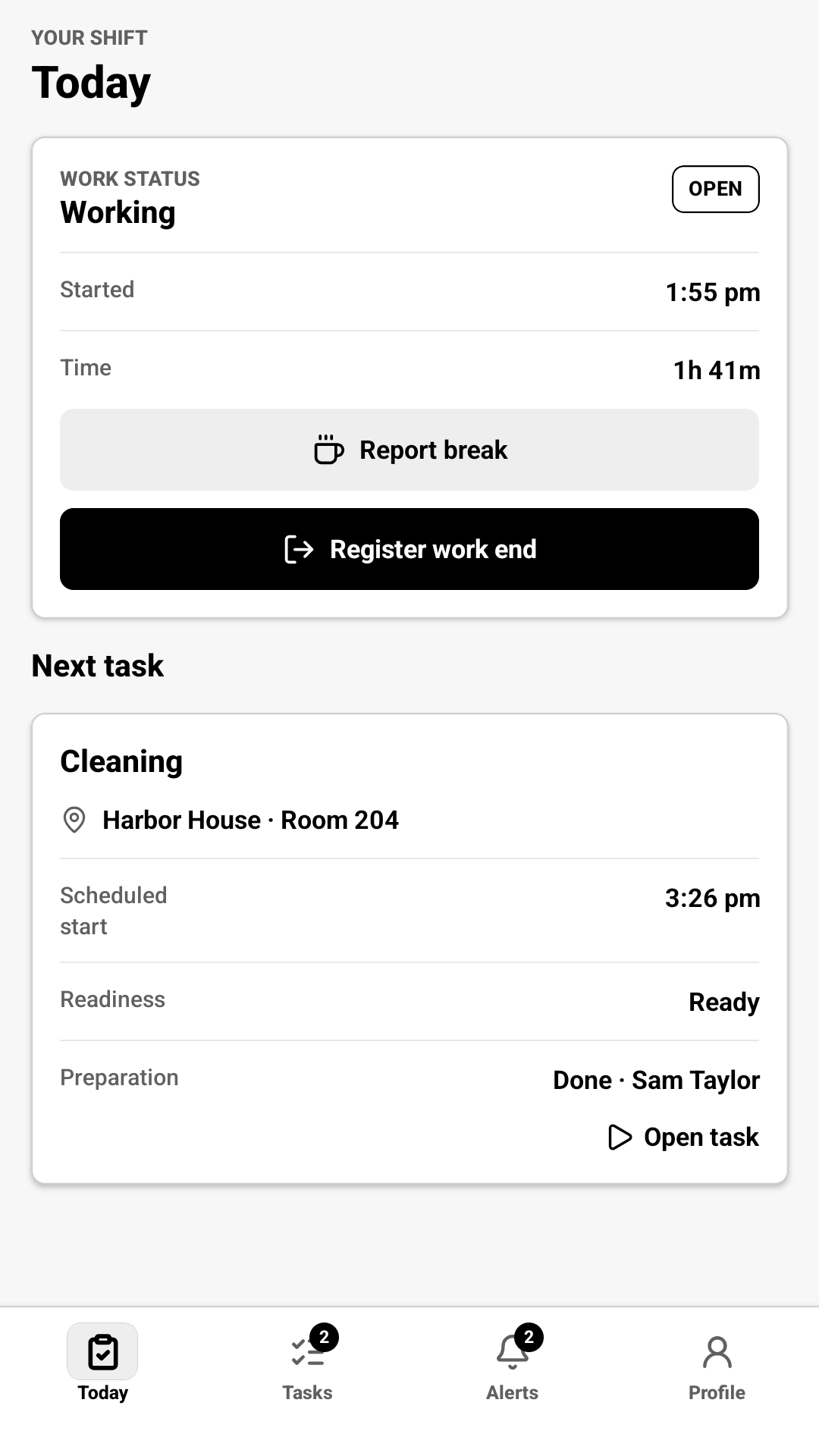
Open Tasks and Today. Check that your assigned work is easy to find, then open a task and read its details.
On an assigned test task, try the available work controls and photo steps. Note anything unclear, slow or unexpected.
Look through Alerts and Profile. Try the language and appearance settings, then reopen the app to check your preferences.
A LITTLE HELP
First check the availability message in step 2. When the test is open, confirm you joined the group before accepting the Play invitation, and used the same Google account in both places and on your phone. New releases and access changes may take time to appear. Return to the invitation and try again later.
Check that you opened Get It Maid NOW Testers and are signed in. This group is intended for direct joining. If Google still requires approval, self-service access is not ready. Return to this page later; you do not need to send an access request or email.
Google requires you to leave the internal test before joining a closed test. Open the earlier internal-test page (new tab) and choose to leave that test, then complete steps 1 and 2 here using the same account.
No. Group membership and Play enrollment enable the download. Your Contractor app account is separate and needs an assigned alias, password and mobile access. See the sign-in step before trying to log in.
Your account only shows work assigned to it. Check the date in Tasks and try refreshing. An empty list does not mean Google Play enrollment failed; your company’s assignments determine what appears.
Keep your group membership and Play enrollment to receive test updates through Google Play. To stop testing, return to the invitation page and choose Leave the program. You can also leave the Google Group from its membership settings.
This guide and its Google Play invitation are for Android. They do not install an iPhone app.
HELP US IMPROVE
After installing the closed-test app, open its Google Play listing and find the private feedback section. Describe what you tried, what happened and what you expected. Include your phone model and app version; leave out passwords and private work details.
Private feedback becomes available with the closed test. Join the group now, then return here when enrollment opens.
No email is needed. Setup instructions and troubleshooting remain on this page.
Back to setup